

Sending files by email 📩 📩
We use Microsoft365 SharePoint file sharing as our method of sending files via email.
IN THIS METHOD, WE WILL INCLUDE A LINK TO ACCESS THE FILE IN THE BODY OF OUR EMAIL. WE WILL SET ACCESS RIGHTS TO THE FILE, AND THE URL OF THE LINK WILL BE VALID ONLY FOR THE ACCOUNT SPECIFIED BY US.
PLEASE ACCESS THE URL IN THE LINK AND FOLLOW THE STEPS BELOW TO INQUIRE ABOUT YOUR ACCOUNT. AFTER ACCESSING THE FILE, PLEASE EXECUTE THE DOWNLOAD.

How to Inquire about an Account
a. If the recipient is a Microsoft365 account
Click on the link to the file and log in to Microsoft365 to access the shared file.
When the file appears, download it.
Note that even if the recipient is a Microsoft365 account, you may be asked to enter a verification code. In this case, please refer to "b. If the recipient is not a Microsoft365 account".
b. if the recipient is not a Microsoft365 account
1. Click on the link to the file and request the verification code.
On the "Confirm ID" screen, enter the email address of the email recipient and click "Next. A verification code will be sent to the email address you entered.
If the email address entered does not match the access rights to the file, a warning will be displayed. Access rights to the file are set only for the email recipient, and forwarding is disabled.
When the "Request Verification Code" screen appears, click "Send Code" to send the verification code to the e-mail account indicated.

2. SharePoint Online will send an email with a verification code to the email address you have set up access rights to. If you do not receive the email, it may be in your spam folder. Please check your spam folder as well.
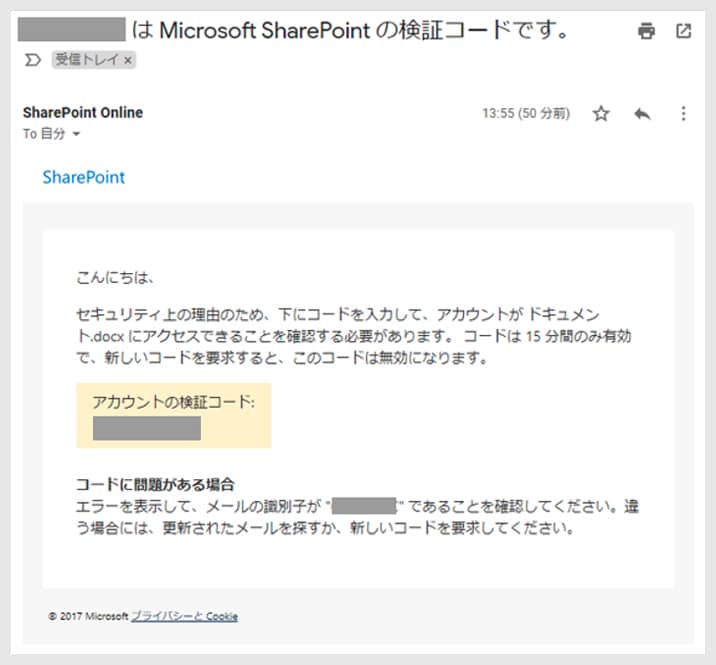
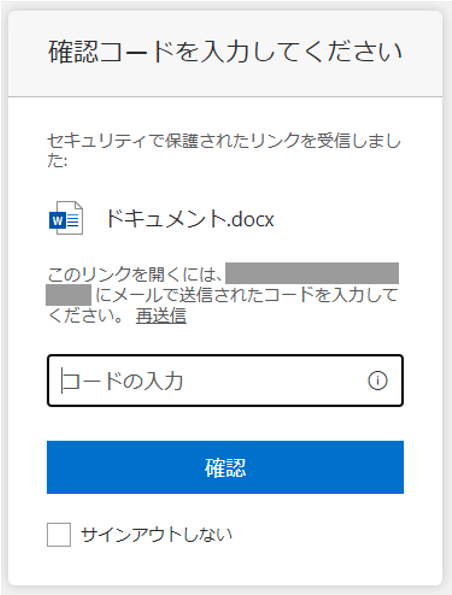
3. Enter the verification code in the "Enter verification code" window and click "Confirm" to access the file.
4. When the file appears, download it.
precautions
- The link to the file is only valid for the account we have set up for you. Please note that if you forward an email, the link will not be available to the account to which you forward the email.
- IF THE RECIPIENT OF AN E-MAIL SENT BY US IS A GROUP E-MAIL, THE FILE ACCESS RIGHTS ARE ALSO SET TO THE GROUP E-MAIL.
- Shared files may be unshared in accordance with our regulations.
All images in the text are copyrighted by Microsoft.